
Skip to content
  • Home
  • How to
  • Network
  • WiFi
  • List Default Router IP
  • How to Find Router IP
  • Software
  • Contact US
dlink user block for internet access

Block internet access for LAN and WiFi User in DLink

by admin

How to block User in D-Link WiFi Router?

Block internet access in D-Link Wi-Fi routers for wired users as well as WiFi users. D-Link provides Wifi router and DSL routers for broadband internet connection for last-mile connectivity. It is a popular and trusted brand for home as well as official networks. D-link router software is loaded with all the latest features to provide a secured network. D-link Wifi router is the best home router and easy web interface to setup without any highly technical expertise. You can login d-link router yourself to change the login password, Wifi password, and name as well as other configurations.

  • List of Best Gaming Modem with Gigabit Speed

You may always use a WiFi password to secure your internet from unauthorized access but you can also enable a mac access list to block unknown users in the network. ACL (access control list) not only gives you the power to filter wired computers, but you can also restrict internet access for specific users. In earlier posts, we have provided a user manual to setup d-link as repeater mode to boost WiFi signals. Now, this post will help you to enable mac access list to block the user to access the internet only. Blocking mac addresses only restricts internet access and the user still can access and share local networks. If you have a d-link dir600, D-link DSL router, or dual band wifi router you can use this user guide to block mac addresses for specific users to access the internet.

  • How to Fix WiFi Signal issue using Old WiFi Router

Steps to Enable Mac Access List

D-Link router web interface login required to set up mac address blocking.

Connect DLink wifi router using wired or wifi connectivity to access the web interface.

Default Login D-link IP address 192.168.0.1

Default username: admin

Password: admin or Blank or 1234   depends on the models.

  • How to access Wi-Fi repeater if forget password?

Open a Web browser and access http://192.168.0.1 or http://192.168.1.1 DSL login IP and wait until the login page is loaded.

Use the default username password to log in or if you already changed the password use the same to log in to your router.

Once you login to the router control panel now follows the steps to block users.

  • Best VPN Routers Hardware for Home

Block Wi-Fi users to Connect WiFi

Blocking users in d-link dived into two parts.

Restrict wifi devices from connecting wifi networks or block internet access for wired as well as wireless users.

If you want to deny wifi users such as a mobile, laptop or any other device to connect wifi network then you need to enable ACL (access control list) under Wireless.

Block Mobile device to connect wifi.

Go to Wireless- Advanced Wireless

Enable ACL (access control list)

Check the box to Enable wireless access control mode.

Mac Address: 00:23:2b:15:98:1b (add the mac address of the user’s mobile or laptop device you want to disallow to connect wifi)

You can get a user’s mac address from the DHCP client list or manually check the mac address from the device.
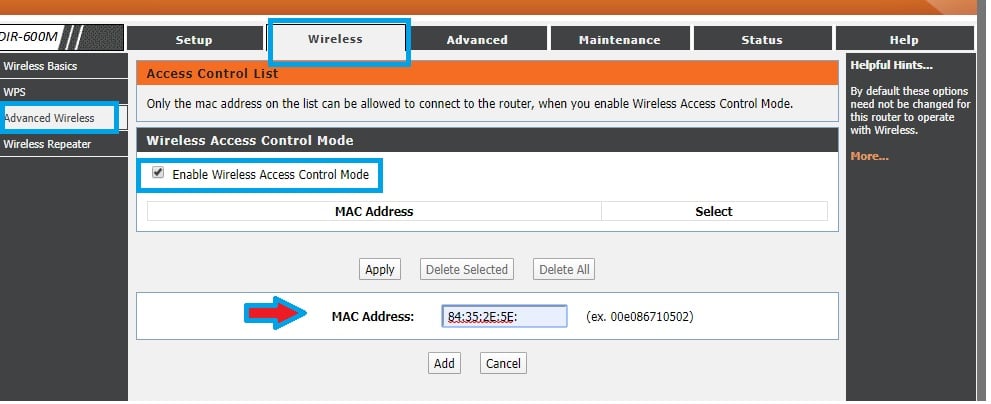
d link dir 882 block mac filtering

After creating this list mac address added to the list can’t connect to WiFi internet.

  • How to turn wired IP Camera into Wireless camera

Block internet access for LAN and WiFi user

You can block only internet access for specific users in the network without local sharing blocking.

Restrict internet access for LAN and WiFi user needs to enable Mac access list under network options.

Setup the mac filtering option Go to the Advanced option in the d link router.

Advanced= Network Filter

Turn Mac Filtering ON and Allow– The only users who can access the internet those are added to the mac access list.

Turn Mac filtering ON  and Deny Computer listed to access the network– User added to the list can not access the internet.
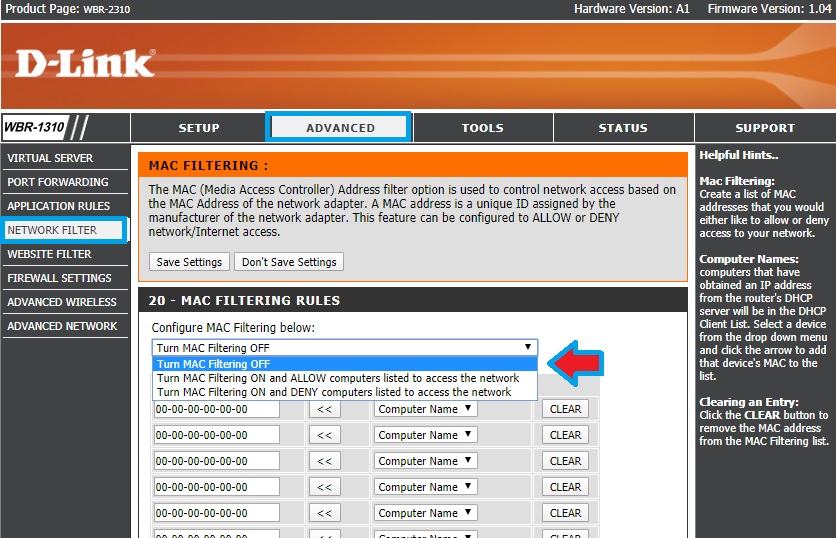
how to block a mac address d-link router

Select Deny’s option to block specific users to access the internet.

If a user is connected to the internet you can pick the user’s mac address from the DHCP client list option and add to the mac list.

You can add manually mac address for specific mobile, laptop, or computer to block the internet.

Once all mac addresses are added save settings to confirm the list. This is a D-link WBR-2310 WiFi router mac filtering option.
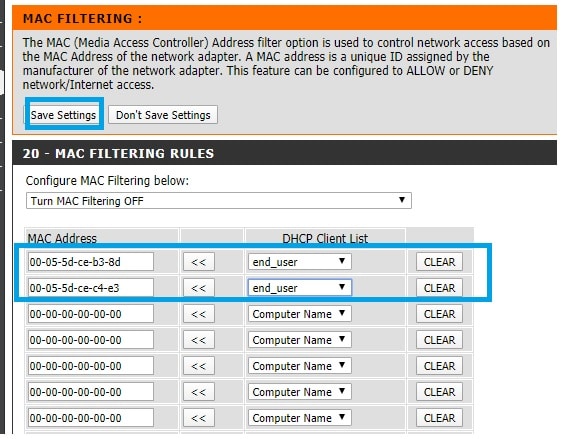
How to Block Devices from Your Home Network

After saving settings check if the specific user’s internet is disconnected or showing limited or no internet connectivity.

Also, confirm local network sharing still working and that you can access computers connected to the network.


Related Post

  • How to login Aztech Router IP 10.0.10.254
  • 192.168.10.1 Login and Setup Wavlink WiFi Repeater
  • Create a Local Network using Old Router
  • Best 8 port Gigabit Switch for Business and Home
Categories D-Link Tags d-link schedule access control, dlink login, how to block mac address in dlink router 2750u, how to block mac address in dlink router dir-600m, how to block mac address in dlink router dir-615, how to block mac address in dlink router dir-816, how to block wifi users in dlink router, how to remove users from dlink router
Netgear Range Extender Factory Default
TP-link Range Extender As Access Point Mode

Recent Posts

  • 192.168.11.1 Login Buffalo WiFi to Setup As Range Extender mode
  • 192.168.4.1 Admin Login Router
  • Best 8 port Gigabit Switch for Business and Home
  • How to Fix Spectrum Router Red Light Error ?
  • Why My ATT broadband blinking red ?

Categories

  • 10.0.0.1 (1)
  • 10.0.0.1 (1)
  • 10.1.1.1 (1)
  • 10.1.10.1 (1)
  • 10.10.10.1 (1)
  • 10.10.10.10 (1)
  • 1200Mbps (1)
  • 192.168.0.1 (1)
  • 192.168.0.250 (1)
  • 192.168.0.254 (1)
  • 192.168.0.50 (1)
  • 192.168.1.0 (1)
  • 192.168.1.1 (1)
  • 192.168.1.2 (1)
  • 192.168.1.254 (1)
  • 192.168.1.4 (1)
  • 192.168.10.1 (2)
  • 192.168.10.253 (1)
  • 192.168.10.254 (1)
  • 192.168.100.100 (1)
  • 192.168.11.1 (1)
  • 192.168.15.1 (1)
  • 192.168.16.1 (1)
  • 192.168.188.1 (1)
  • 192.168.188.253 (1)
  • 192.168.2.1 (1)
  • 192.168.254.254 (1)
  • 192.168.3.1 (1)
  • 192.168.4.1 (1)
  • 192.168.42.1 (1)
  • 192.168.8.1 (1)
  • 2Wire AT&T (1)
  • 4G Hotspot Router (1)
  • AC1200 Range Extender (1)
  • AC1200 Range Extender (1)
  • AC1200 Range Extender Setup (1)
  • AC600 Outdoor WiFI Extender (1)
  • Aigital Range Extender (1)
  • Airtel (1)
  • Airtel Xstream (2)
  • Amped wifi booster (1)
  • Amped Wireless (1)
  • Arlo (1)
  • Arlo Base Station (1)
  • Arris (2)
  • Arris TG1682G cable Modem (1)
  • Asus (3)
  • Asus Range Extender (1)
  • AT&T (1)
  • AT&T Compatible Modems (1)
  • Aztech (1)
  • Aztech (1)
  • BelAir 20E (1)
  • BelAir Networks (1)
  • Belkin (2)
  • Brands (2)
  • BSNL (1)
  • BT Extender (1)
  • Buffalo (1)
  • C6300 Cable Modem (1)
  • Cable Modem (1)
  • Cable Modem (1)
  • Cable Modem (1)
  • CCTV (1)
  • CenturyLink Router Login (1)
  • Cisco (1)
  • Cisco Router Login (1)
  • Comcast Xfinity (1)
  • Comfast (1)
  • CradlePoint (1)
  • D-Link (4)
  • DG-5314T (1)
  • DG-5524T (1)
  • DigiCom (1)
  • DSL Modem and Router (1)
  • Ethernet Switch (1)
  • Fiber (1)
  • FTTH ONT/ONU (1)
  • G1208 WiFi Extender (1)
  • Galaway Range Extender (1)
  • How to (7)
  • Huawei (1)
  • iBall (2)
  • IP Address (4)
  • LB-Link (1)
  • Linksys (2)
  • List Default Router IP (1)
  • Lite Beam (1)
  • Mac (1)
  • Medialink (1)
  • Meraki (1)
  • Mercusys (1)
  • MI (1)
  • Moca Adapters (1)
  • Modem with Phone Jack (1)
  • Motorola (1)
  • motorola router login (1)
  • MR70 Wave2 (1)
  • myrepeater (1)
  • Netgear (3)
  • Network (3)
  • Nokia (1)
  • Nokia G2425G-A Fiber ONT (2)
  • ONT (1)
  • OpenWRT (1)
  • Opticover Range Extender (1)
  • Quantum Gateway Router (1)
  • Range Extender (1)
  • Range Extender (1)
  • Repeater/ Range Extender (21)
  • reset spectrum router (1)
  • Review (2)
  • Ring Chime Pro (1)
  • Rockspace WiFI Extender (1)
  • Roku (1)
  • Roku Stick (1)
  • Router Login (1)
  • Router Login (1)
  • Sercomm (1)
  • Setek (1)
  • Spectrum (1)
  • spectrum modem lights (1)
  • SuddenLink (1)
  • Synology (1)
  • Synology RT2600ac (1)
  • TalkTalk router (1)
  • Tenda (3)
  • TP-Link (8)
  • tplinkwifi-net (1)
  • TRENDnet (1)
  • Troubleshooting (1)
  • Ubiquiti (1)
  • Uncategorized (2)
  • Uniway (1)
  • Urant WiFi Repeter Setup (1)
  • VDSL/ADSL Modem (1)
  • Verizon (1)
  • Verizon WiFi Extender (1)
  • Victony (1)
  • VPN Routers (1)
  • WA1200 Range Extender (1)
  • Wavlink (3)
  • Wavlink AC1200 (1)
  • Wi-Fi Disconnection Problem (1)
  • WiFi (11)
  • WiFi Range Extender setup (1)
  • WiFI Repeater Setup (1)
  • WiFi Router (1)
  • WiFiBlast (1)
  • Windows (2)
  • Windstream (1)
  • Zyxel (1)

Tags

192.168.1.1 show password 192.168.1.101 login 192.168.10.1 wifi repeater setup 192.168.l.0.1 login asus repeater setup rt-n12 best wifi extender best wifi extender 2019 best wifi extender cnet best wifi extender for gaming best wifi repeater india comfast 1200mbps dual band repeater setup comfast outdoor wifi extender comfast wifi extender setup uk d'link extender admin password dlink login how to access asus router in repeater mode how to connect to internet using ethernet cable windows 10 how to create lan in windows 10 for gaming how to reset wifi repeater how to use wifi extender http //192.168.o.1.100 login huawei router login username and password long range wifi extender netgear extender default password netgear router login netgear wifi extender netgear wifi extender n300 setup nokia g2425g-a manual nokia g2425g-a router manual router login sagemcom router red light tp-link archer c7 repeater mode tp-link login tp link extender setup without wps tp link range extender tl-wa860re setup wavlink ac1200 outdoor wavlink manual wavlink wifi extender wavlink wifi range extender setup wifi.wavlink.com login wifi booster walmart wifi extender wifi repeater amazon wifi repeater setup zyxel 192.168 login
Follow me on Blogarama

Archives

Recent Posts

  • 192.168.11.1 Login Buffalo WiFi to Setup As Range Extender mode
  • 192.168.4.1 Admin Login Router
  • Best 8 port Gigabit Switch for Business and Home
  • How to Fix Spectrum Router Red Light Error ?
  • Why My ATT broadband blinking red ?
Content Protection by DMCA.com
  • Contact US
  • Privacy Policy
  • Terms and Conditions
  • Disclaimer
© 2026 • Built with GeneratePress