
Skip to content
  • Home
  • How to
  • Network
  • WiFi
  • List Default Router IP
  • How to Find Router IP
  • Software
  • Contact US
192.168.188.253/index.html

192.168.188.253 default Username and password

by admin

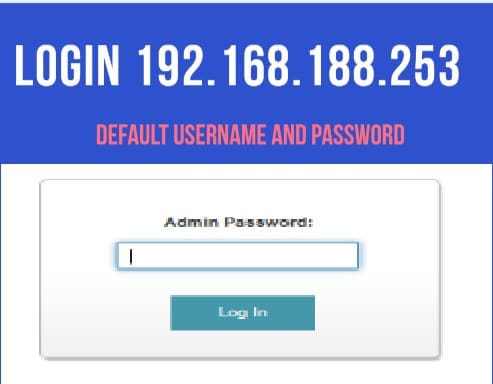
Login 192.168.188.253

192.168.188.253 private C class IP address used by many leading network manufacture as the default gateway IP address. Router and WiFi access point with default LAN IP 192.168.188 .253 used by many OEMs with multiple devices. The default gateway IP address 192.168 .188.253 most commonly used by Yuncore, NC-link Blake-UK, Airpro, Levelone, and many other companies. If you own any of the brand devices than you can use this user guide to login device. some of the devices also use 192.168.188.1 from the same manufacturer so if 192.168.188.253 not working you can try 188.1

  •  Block internet access for LAN and WiFi User in DLink

Default Username and Password for 192.168.188.253.

To access the router and access points need default login credentials for the login IP address.

Find the default login user name and password.

Default login IP address – 192.168.188.253

Username– admin or NA

Password– admin

  • 10.1.10.1 Admin login Username and Password

Steps To Login 192.168.188 .253

Access AP or router using default IP address need to physical or wi-fi connections from PC/Laptop.

How to access WiFi Router settings using WiFi and Wired?

  • Power on the unit with an adapter comes with the device.
  • Go to Computer LAN or Wireless Ethernet TCP/IP settings and use 192.168.188.2 in Static IP mode.
  • Connect Wired LAN cable from LAN port to PC or use Default WiFi SSID and password to connect using the wifi network.

Blake-UK Default SSID– PRoWifi 2.4G

Default Wi-Fi password- 4wG7cZXd

Or Default SSID- wireless 2.4G

Default WiFI password- 66666666

Levelone default WIfi SSID– Levelone 2.4G

Level1 password- 66666666

  • How to Find Your Router IP Address

Once you are connected to your AP Device now follow the steps to access the settings to the browser.

Open a Web browser and access http://192.168.188.253 or 192.168.188.1 and wait for a few seconds to load the login page.

Use default login password as per your router model and also printed to backside sticker and Quick user guide.

Press the login button to access settings.

192.168.188.253 Default Router IP Login

After logging in to the control panel you will land to the dashboard where you can find the network map, CPU usage, Wireless settings, LAN settings, and Location information.

  • How to Reuse old WiFi Router with Different Modes

Change WiFi SSID and Password

Changing the Default WIFI SSID name important to secure wifi networks from unauthorized persons.

To change the WiFI Network name click the wireless (2.4G) option to open wifi settings.

SSID– Wireless 2.4G (change this name with a new wi-fi name for your wifi networks.

Bandwidth– 20 (if internet speed 50+mbps use 40MHZ)

Channel– 2412(channel 1)

Encryption– WAP2PSK_TKIPAES

Key– 66666666 (chang wifi password)

Press the Apply button to save settings.

CPE850 Configuration as AP mode

Change LAN IP address

Press the Ethernet option showing the IP address and Mac address.

Choose Static IP- 192.168.1888.1 (change the IP address)

Apply settings.

  •  How to Fix WiFi Signal issue using Old WiFi Router

Factory Reset Access Point if 192.168.188.253 not working

If you are unable to access the login IP address printed to the router sticker you may factory reset the device to restore to default mode.

  • Remove the device cap and locate a small reset button.
  • Power ON AP and press the reset button for 15 seconds and release the button at 16 seconds.
  • The device will be unplugged from the network and the led light blink twice.
  • Wait until device reboots and after a few seconds check the default login IP address.


 This Login Manual support below brands’ model numbers.

Yuncore CPE830, DX3200, Dual-band A771, and other models, Level one WAB-6010  N300 Outdoor PoE Wireless Access Point, LevelOne WAP8121 AC720 dual-band ceiling mount, Level1 AC12000, and Inwall Access Point, NC-Link NC-AP2110, NC-AP212, NC-AC21AP, NC-AP221,

Airpro Air Connect-2, 300Mbps Outdoor CPE, Air drone, Air Lakshya


Related Post

  • Login Huawei Router- 192.168.1.1/192.168.3.1
  • 192.168.1.1 login Iball Baton Wireless N Router
  • How to Choose Best Wi-Fi Range Extender
  • TRENDnet Router Default Login | TEW-731BR


Categories 192.168.188.253 Tags 192.168.188, 192.168.188.1 login username, 192.168.188.253 login username, How to login NC-lnk outdoor cpe, Radmax Outdoor Access point login IP, Yuncore CPE830 Login Manual
10.1.10.1 Admin login Username and Password
192.168.15.1 Login Router with Admin

Recent Posts

  • 192.168.11.1 Login Buffalo WiFi to Setup As Range Extender mode
  • 192.168.4.1 Admin Login Router
  • Best 8 port Gigabit Switch for Business and Home
  • How to Fix Spectrum Router Red Light Error ?
  • Why My ATT broadband blinking red ?

Categories

  • 10.0.0.1 (1)
  • 10.0.0.1 (1)
  • 10.1.1.1 (1)
  • 10.1.10.1 (1)
  • 10.10.10.1 (1)
  • 10.10.10.10 (1)
  • 1200Mbps (1)
  • 192.168.0.1 (1)
  • 192.168.0.250 (1)
  • 192.168.0.254 (1)
  • 192.168.0.50 (1)
  • 192.168.1.0 (1)
  • 192.168.1.1 (1)
  • 192.168.1.2 (1)
  • 192.168.1.254 (1)
  • 192.168.1.4 (1)
  • 192.168.10.1 (2)
  • 192.168.10.253 (1)
  • 192.168.10.254 (1)
  • 192.168.100.100 (1)
  • 192.168.11.1 (1)
  • 192.168.15.1 (1)
  • 192.168.16.1 (1)
  • 192.168.188.1 (1)
  • 192.168.188.253 (1)
  • 192.168.2.1 (1)
  • 192.168.254.254 (1)
  • 192.168.3.1 (1)
  • 192.168.4.1 (1)
  • 192.168.42.1 (1)
  • 192.168.8.1 (1)
  • 2Wire AT&T (1)
  • 4G Hotspot Router (1)
  • AC1200 Range Extender (1)
  • AC1200 Range Extender (1)
  • AC1200 Range Extender Setup (1)
  • AC600 Outdoor WiFI Extender (1)
  • Aigital Range Extender (1)
  • Airtel (1)
  • Airtel Xstream (2)
  • Amped wifi booster (1)
  • Amped Wireless (1)
  • Arlo (1)
  • Arlo Base Station (1)
  • Arris (2)
  • Arris TG1682G cable Modem (1)
  • Asus (3)
  • Asus Range Extender (1)
  • AT&T (1)
  • AT&T Compatible Modems (1)
  • Aztech (1)
  • Aztech (1)
  • BelAir 20E (1)
  • BelAir Networks (1)
  • Belkin (2)
  • Brands (2)
  • BSNL (1)
  • BT Extender (1)
  • Buffalo (1)
  • C6300 Cable Modem (1)
  • Cable Modem (1)
  • Cable Modem (1)
  • Cable Modem (1)
  • CCTV (1)
  • CenturyLink Router Login (1)
  • Cisco (1)
  • Cisco Router Login (1)
  • Comcast Xfinity (1)
  • Comfast (1)
  • CradlePoint (1)
  • D-Link (4)
  • DG-5314T (1)
  • DG-5524T (1)
  • DigiCom (1)
  • DSL Modem and Router (1)
  • Ethernet Switch (1)
  • Fiber (1)
  • FTTH ONT/ONU (1)
  • G1208 WiFi Extender (1)
  • Galaway Range Extender (1)
  • How to (7)
  • Huawei (1)
  • iBall (2)
  • IP Address (4)
  • LB-Link (1)
  • Linksys (2)
  • List Default Router IP (1)
  • Lite Beam (1)
  • Mac (1)
  • Medialink (1)
  • Meraki (1)
  • Mercusys (1)
  • MI (1)
  • Moca Adapters (1)
  • Modem with Phone Jack (1)
  • Motorola (1)
  • motorola router login (1)
  • MR70 Wave2 (1)
  • myrepeater (1)
  • Netgear (3)
  • Network (3)
  • Nokia (1)
  • Nokia G2425G-A Fiber ONT (2)
  • ONT (1)
  • OpenWRT (1)
  • Opticover Range Extender (1)
  • Quantum Gateway Router (1)
  • Range Extender (1)
  • Range Extender (1)
  • Repeater/ Range Extender (21)
  • reset spectrum router (1)
  • Review (2)
  • Ring Chime Pro (1)
  • Rockspace WiFI Extender (1)
  • Roku (1)
  • Roku Stick (1)
  • Router Login (1)
  • Router Login (1)
  • Sercomm (1)
  • Setek (1)
  • Spectrum (1)
  • spectrum modem lights (1)
  • SuddenLink (1)
  • Synology (1)
  • Synology RT2600ac (1)
  • TalkTalk router (1)
  • Tenda (3)
  • TP-Link (8)
  • tplinkwifi-net (1)
  • TRENDnet (1)
  • Troubleshooting (1)
  • Ubiquiti (1)
  • Uncategorized (2)
  • Uniway (1)
  • Urant WiFi Repeter Setup (1)
  • VDSL/ADSL Modem (1)
  • Verizon (1)
  • Verizon WiFi Extender (1)
  • Victony (1)
  • VPN Routers (1)
  • WA1200 Range Extender (1)
  • Wavlink (3)
  • Wavlink AC1200 (1)
  • Wi-Fi Disconnection Problem (1)
  • WiFi (11)
  • WiFi Range Extender setup (1)
  • WiFI Repeater Setup (1)
  • WiFi Router (1)
  • WiFiBlast (1)
  • Windows (2)
  • Windstream (1)
  • Zyxel (1)

Tags

192.168.1.1 show password 192.168.1.101 login 192.168.10.1 wifi repeater setup 192.168.l.0.1 login asus repeater setup rt-n12 best wifi extender best wifi extender 2019 best wifi extender cnet best wifi extender for gaming best wifi repeater india comfast 1200mbps dual band repeater setup comfast outdoor wifi extender comfast wifi extender setup uk d'link extender admin password dlink login how to access asus router in repeater mode how to connect to internet using ethernet cable windows 10 how to create lan in windows 10 for gaming how to reset wifi repeater how to use wifi extender http //192.168.o.1.100 login huawei router login username and password long range wifi extender netgear extender default password netgear router login netgear wifi extender netgear wifi extender n300 setup nokia g2425g-a manual nokia g2425g-a router manual router login sagemcom router red light tp-link archer c7 repeater mode tp-link login tp link extender setup without wps tp link range extender tl-wa860re setup wavlink ac1200 outdoor wavlink manual wavlink wifi extender wavlink wifi range extender setup wifi.wavlink.com login wifi booster walmart wifi extender wifi repeater amazon wifi repeater setup zyxel 192.168 login
Follow me on Blogarama

Archives

Recent Posts

  • 192.168.11.1 Login Buffalo WiFi to Setup As Range Extender mode
  • 192.168.4.1 Admin Login Router
  • Best 8 port Gigabit Switch for Business and Home
  • How to Fix Spectrum Router Red Light Error ?
  • Why My ATT broadband blinking red ?
Content Protection by DMCA.com
  • Contact US
  • Privacy Policy
  • Terms and Conditions
  • Disclaimer
© 2026 • Built with GeneratePress