

192.168.254.254 Default Admin Login
192.168.254.254 is C class network IP address from Network ID 192.168.254.0 used in default login IP address with many leading brands router as well as cable modems. 192.168.254.254 used as the default gateway IP address in Frontier cable modem that provides multi-service over coax cable such as internet and voice, TV. The login guide for 192.168.254.254 IP address is similar to log in for any other IP address from the network series 192.168.254.1. if you have a wireless router, frontier cable modem, or any other network device that is managed by a web interface or command with login IP 192.168.254.254 then this article useful for you.
You need to connect the router, and modem either using a wireless or wired connection from a computer or laptop to access the router web interface using the default login credential. Default login credentials are also printed to the router backside sticker so check router login password for IP address 192.168.254.254 printed to your modem sticker.
Default Login username and password for 192.168.254.254
Usually, the default Login IP address and login password are printed to the router label or box while buying a new router or modem. If your router is older and the router label damaged not viewable then try the below login username password combination that might work with your modem and router.
Default Login IP address – 192.168.254.254
Username– admin
Password– admin or blank (no password)
For frontier router, if settings up the router the first time then you need to create a log in password during the first-time login as per your choice. If you trying to login configured frontier router with 192.168 .254.254 IP address then use the same password you configured.
Steps to Access Router with 192.168.254 .254
You need to connect the router, range extender, AP, or modem using wired or wireless if your router supports wifi also. Default WiFi name and WiFi key printed to router sticker you can use to connect for the first time.
- If your router supports multiple Ethernet Port you can use any LAN port to connect your PC/Laptop or use wifi to connect using wireless.
- Go to computer/Laptop LAN IP settings and make sure it’s in DHCP mode.
How to Fix WiFi Signal issue using Old WiFi Router
Access Web Interface
Open a web browser (Google Chrome, Firefox, Edge, or Internet Explorer) and access http://192.168.254.254 and wait to load the login page asking for username and password. Avoid using the wrong IP format such as 192.168 l 254.254.
Login User name– admin
Password– admin or use the same password you created.
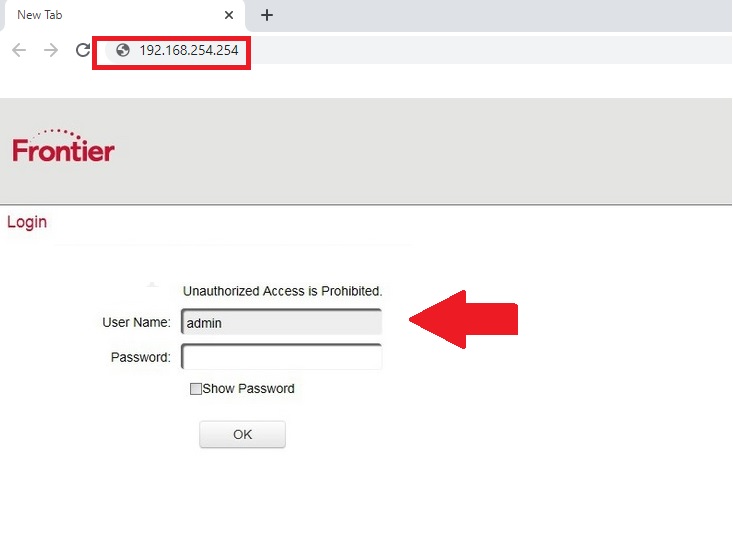
Press the OK button to login into the router control panel where you get full access to router settings.
Once you login to the router you can configure the wireless setting, port forwarding, website block, user block, and schedule internet for parental control.
Change Wireless SSID name and password
If you are using the default Wi-Fi network name and password then it’s highly recommended to change the default wifi name.
To change the wireless name and password find wireless settings in the router settings menu. If your router support dual-band then you have to change both the wireless band name and password.
Wireless Settings
Wireless SSID – WiFi name (create a name for your wireless network as per your choice.)
Wireless Password- WPA2-PSK
Wi-Fi Key– Create WiFi new password using Alfa numeric key combination with a special character to make the stronger password.
Press Apply settings and connect all your wi-fi mobile, laptop, Wi-FI printer, and other WiFi user with a new password.
How to Reuse old WiFi Router with Different Modes
Change LAN Settings
If you are using multiple access points in the same network and want to change the default LAN IP address for your router then you can easily change 192.168,254,254 IP address with any other IP series.
Go to LAN settings.
IP Address- 192.168.254.245 (change IP address with the new IP address as per your choice)
Subnet Mask– 255.255.255.0
192.168.254.254 Login Troubleshooting
If you are a beginner and facing a login error while accessing your router with the default IP address as printed to the router sticker or getting an error site can’t be reached or 192.168.254.254 refused connection then you have to follow troubleshooting steps to fix the login problem.
192.168.254.254 not Working
Default IP address not working or talking to a long time to respond problem can come due to network configuration issue or the router not belonging to IP address you are trying to access. Follow the steps to fix the login problem step by step.
- Make sure the default IP address is printed to the router sticker you are using the same IP to access the router.
- Check Computer/Laptop LAN IP settings should be in DHCP mode for a router or in static IP 192.168.254.2 for any other network device.
- Use the LAN port to access the router web interface. Do not use the WAN port to login to the router.
- Make sure Login IP address is already not changed with different IP. Find router IP address first and access with the same IP address.
- Make sure you are using 192.168.254.254 or http://192.168.254.254 . if you use https //192.168.l.254 or www.192.168.254.254, 192.168 l 254.254, 192168254254 then you will be redirected to an error page.
If you are still unable to access the router web interface, you have to factory reset the router to restore to default mode.
Router Factory Reset to Restore 192.168.254.254
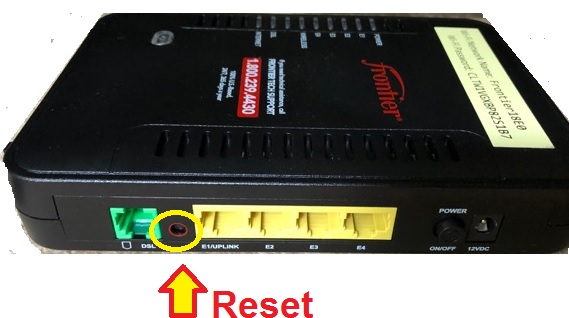
You can restore router to factory default mode using a tiny hard reset switch mostly available in all brand modems and routers.
Note: While making the router into reset mode will erase all configuration saved in the router so your router will not work for the internet until it restores configuration backup or configures again as per internet settings.
Only make the router reset if you have configuration backup or other internet settings to setup again.
Steps to factory default Router
- Locate a small reset switch beside the Ethernet ports.
- Use a needle or paper pin and press the reset button for 10 seconds
- Keep monitor LED lights and release the button when the power led and other LED suddenly turn off and turn on again.
- The router will automatically restart and will reboot into factory default mode.
- This process may take 2-3 minutes so wait until 192.168.254.254 Ping again.
These is simple steps to login router with 192.168.254.254 IP address to set up and configure settings the first time and post configurations.if your router not working with this login IP address you can try 192.168.254.1, 192.168.1.254, 192.168.1.1, 192.168.2.1, and 192.168.0.1 some most popular default IP address used by leading brands.
What are the default login credentials for 192.168.254.254?
The most common default credentials are:
- Username: admin
- Password: admin or password
What if I forgot my router’s username and password?
- Try using the default credentials listed above.
- If changed and forgotten, reset the router by pressing the reset button for 10-30 seconds.
- After resetting, use the default login credentials to access the router.
Why can’t I access 192.168.254.254?
Your device is not connected to the router’s network.
The router doesn’t use 192.168.254.254 as the gateway IP. Try 192.168.1.1 or check your router label.
Your browser has cached issues—try clearing cache or switching browsers.
There is a router issue—restart your router and try again.
How do I find my router’s IP address if 192.168.254.254 doesn’t work?
For Windows:
1️⃣ Open Command Prompt (Win + R → type cmd → Enter).
2️⃣ Type ipconfig and press Enter.
3️⃣ Look for the Default Gateway under your network adapter—it’s your router’s IP.
For Mac:
1️⃣ Open Terminal and type: netstat -nr | grep default.
2️⃣ The IP address next to ‘default’ is your router’s login IP.
Can I change the router login IP from 192.168.254.254 to something else?
Yes, most routers allow you to change the default gateway IP. You can do this in the LAN settings section of your router’s admin panel. However, after changing, you must use the new IP address to log in next time.
How can I secure my router login page?
Change the default username and password.
Use a strong WiFi password and enable WPA3 or WPA2 security.
Disable remote access unless necessary.
Keep your router firmware updated.
Related Post
- How to Choose Best Wi-Fi Range Extender
- Best MoCA Adapters For Your Home
- 10.1.10.1 Admin login Username and Password
- Arris TG1682G Review | Ultimate Buying Guide