
Suddenlink Router Login IP Address Password
Suddenlink Router login required to set up the first time and later to update Wireless SSID as well as Passwords. Suddenlink provides various services such as cable television, high-speed internet, broadband phone, home security. If you are a Suddenlink subscriber or you may plan to buy Suddenlink broadband internet connection then you must know the steps to login Suddenlink modem to change Wi-Fi Password to protect your home internet from unknown access. Probably when you Subscribe Suddnlink internet connection then a support team installs a Sudden link Modem and set up the first time for you but later you also required a user manual on “how to login modem” so you can manage your broadband modem yourself.
Suddenlink connection compatible modem is Arris, Motorola surfboard, and many others. You can see default login details printed to Suddenlink Arris router sticker available on the router. If you are not sure about your WIFI cable modem brands then follow the user guide here to access the router web interface.
Default Login Settings to Login Suddenlink Modem
The first requirement is the default credential to access the router control panel. Default settings always printed to modem stickers and the Quick user manual comes with a router box. However, find SuddenLink arris router login settings below for the first time setup.
Default Login IP Address- 192.168.0.1
Suddenlink Default username- cusadmin
Default Password- password
Right down the default credential for your Suddenlink Internet modem and follow further steps to setup.
Steps to Login Suddenlink Router
Now the next step is the connection with the computer/ Mobile to access the router Web GUI. If the router already installed by the Suddenlink team then keep the coaxial cable as it is and connect your PC/Laptop for configuration. If you want to first-time setup modem then Connect the Coaxial internet cable coming from ISP to the Coaxial port available in Modem.
- Internet cable coming from the Internet provider side should connect to Coaxial port in the modem.
- Connect Ethernet cable from Modem LAN port to PC Ethernet Port as shown below image.
- Connect the Power supply to DC socket and Turn on Modem.
- Go to PC/Laptop LAN settings and confirm TCP/IPv4 should in DHCP mode.
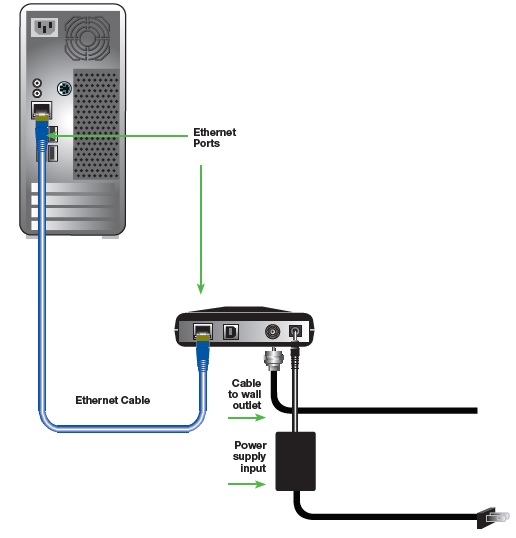
Once Modem turns on and PC Ethernet light blinking then proceed to access the login page.
Login router to a Web browser
Open web browsers such as Chrome, Mozilla, Microsoft Edge, and access http://192.168.0.1 and wait to load the Suddenlink.login page. After a few seconds if everything works perfectly you will get a modem login page asking for a username and password.
Use Login user name “cusadmin” and password “password” and press Apply button to login setting page.
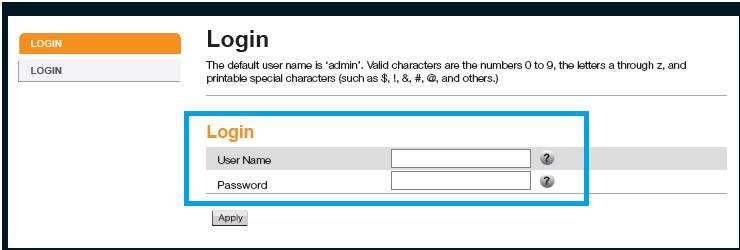
Once you logged in to the modem setting page the next step is to change the Suddenlink wifi password and SSID network name to protect wireless internet.
Change WIFI SSID and Password
Wireless modem pre-configured with default SSID name and password that can easily access by anyone so always change it before connecting to the internet.
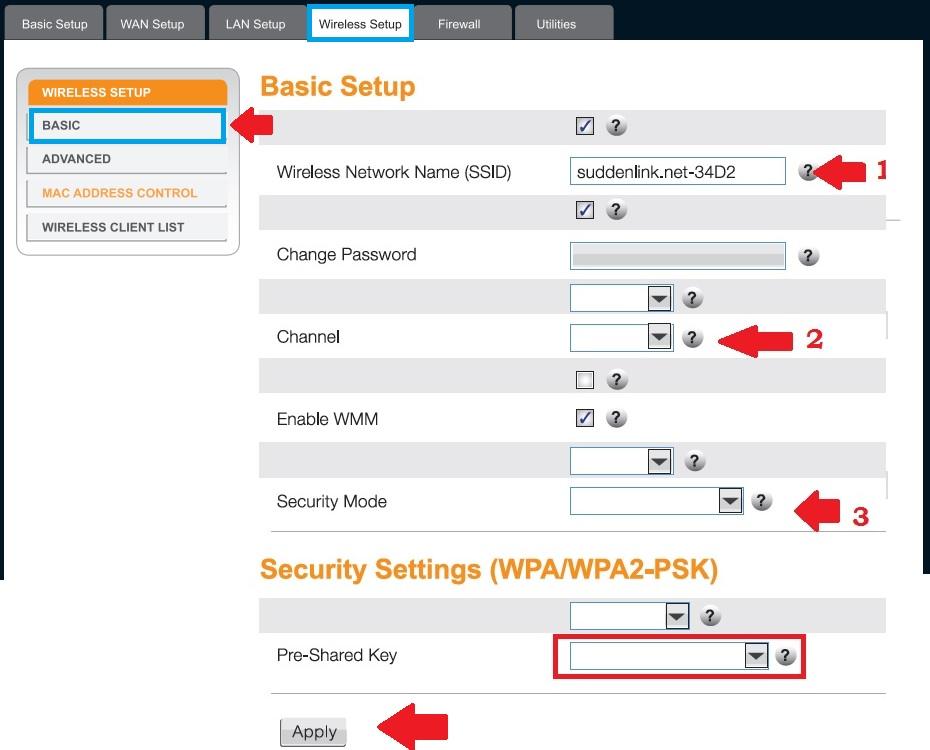
Go to Wireless Setup from the Top menu.
Wireless Setup- Basic
Basic Setup
1: Wireless Network Name (SSID)- Suddenlink.net-34D2 (change this default SSID as per your choice new WIFI name)
2: channel– Use Auto if only one router running in your home or use 1,6,11 channel number if using multiple WiFi access points.
3: Security Mode- WPA/WPA2-PSK
Pre-shared key– Suddenlink wifi password (set a new strong password for your Suddenlink wifi network)
Tips to Change Password
- Use a stronger complex WIFI password that easy to remember and hard to guess.
- Never use personal details such as mobile number, address, date of birth as wifi key.
- Use alphanumeric mix combination and at least 8 digits for the WIFI password.
- Don’t write a login and WiFi password on the router.
Press the Apply button to save settings. If you are using the default SSID name to connect your Laptop then you will be disconnected from the modem and connect again with a new wifi name and password.
The next step is to change the default Login password to secure router access from a user connected to wire or wifi network.
Change SuddenLin Login Password
To change the login password you required the old login password you used to access modem settings.
Go to the Basic Setup tab from the top menu.
Click on the Change password option from the left side menu.
Set Password
Old Password– password (use the same password if you changed already)
New password– Set a new login password.
Repeater New Password– repeat the password again to avoid mistakes.
Press the Set button to save settings and login to the modem with a new password. Once you update all login password then you router ready to work in live internet connection without any worry.
Apart from configuration steps, you may be facing any login issue while trying to access the SuddenLink router from the browser then you must read the troubleshooting steps. Below.
Suddenlink Modem Login Troubleshooting
Unable to login router IP or default login IP address not working for you may the problem comes due to network configuration or other technical glitches that can fix using the below steps.
Login IP address 192.168.O.1 Not working
Most common problem is login IP not working comes with almost every brand router and modems. Not to worry it can just a network configuration issue or the default Gateway IP address may already change.
- Fix the cant access router login IP address by following the below steps.
- Make sure the default login IP address you are using the same as printed to the router sticker.
- Your computer/Laptop LAN IP settings should not be in the different network series. Check and make it to DHCP mode or use static IP 168.0.2 or 192.168.o.l00
- Check if the default login IP address already not changed during the first-time login.
How to access Wi-Fi repeater if forget password?
Login Username and Password Not Working
If you able to access the Suddenlink login page but unable to login due to the wrong username or password error message. There are many reasons to get an Invalid username and password while trying to login router or modem.
Fix the wrong username and password follow the steps below.
- Check the default login username and password printed to your modem sticker.
- Make sure the default password and username already not changed.
- Check caps-lock not enable while typing the password.
- Type password in notepad and paste to password field to confirm keyboard working properly.
- If still can’t login router then have only way is to factory reset SuddenLink router to restore settings.
How to Reuse old WiFi Router with Different Modes
Factory Reset Suddenlink Router Modem
Making modem default will erase all configuration and the modem stop working until setup again. Only use reset option if you have tried all the way to access router settings or you have a configuration backup file to restore again.
Steps to Factory default Suddenlink Wireless Router
- Locate a reset button beside Ethernet or internet ports.
- Use a needle to press the reset button.
- Press and hold the reset button for 10-15 seconds and release the button when the modem led blink and rebooting start.
- Wait until modem rebooting, this process may take 3-4 minutes so keep wait until you got default IP Ping.
- Once the router restores to factory mode then follow the above steps to log in again.
Related Post
- Login 192.168.l.254 Admin Username and Password
- login 192.168.10.1 IP Address with admin password
- 10.1.10.1 Admin login Username and Password
- Best DSL Modem 2021