
192.168.3.1 Admin Login Username and Password
192.168.3.1 is C class private IP address used for local networks. 192.168.3.0 is the subnet ID and 192.168.3.255 is the broadcast address. There are many leading brands those are using 192.168.3.1 as the default gateway IP address for wireless router, range extender, and cable modems. Some popular brands are, Huawei, Zyxel, Amped wireless, Onion Omega2 Plus, and many others using 192.168.3.l default login IP address for their network products. If you have any brand router, modem, or other managed network device that use the default IP address is 192.168 3.1 and you looking to access the web interface using a computer or mobile device. If your device support WiFi then you can use either a wired or wireless connection to access the router web interface. This article will help you to access the router using 192.168.3.1 default IP address using default credential.
To access the router or modem you need a default login username and password for the 192.168.3.1 IP address. Login Username and password might be different for each brand and model. Find model number and default logins settings printed to your router sticker or quick user guide comes with router box. If you not sure about your router model or sticker damage find the list of default usernames and password combination work with 192.168.3.1 for most router and modems.
Default Username and password
There are many common usernames and password combinations that used in most of the router for default login settings.
| Default Login IP 192.168.3.1 | |
| Username | Password |
| admin | admin |
| admin | 1234 |
| admin | password |
| admin | Na |
| root | onioneer |
Check your router sticker for default login IP address and username password that will 100% work for you. After the right down login credential next step is wired or wireless connection with modem or router you wish to access settings.
Wired or Wireless connection with Router
Wireless routers or cable modem support multiple Ethernet ports that use for local network connections.
If your router supports wifi and wired both then you can use wifi or wired to connect with the router. If your cable modem does not support WiFi then use the Modem Ethernet port to connect your PC/laptop.
- Connect Default SSID name or WiFI name you create for your router to use the wireless connection.
- Use LAN cable to connect from router LAN port to PC LAN port for wired connection.
- Go to windows, Mac OS, and Linux network settings and make sure the DHCP option enable.
- Power ON router with DC adapter included with the router and follow further steps.
192.168.1.0 Admin Login Router
Access Router web interface
After physical or wireless connection now opens a web browser and access login IP http://192.168.3.1 and wait a few seconds to load login page asking for username and password.
Use the default username and password as printed to your router sticker and authenticate the router login page.
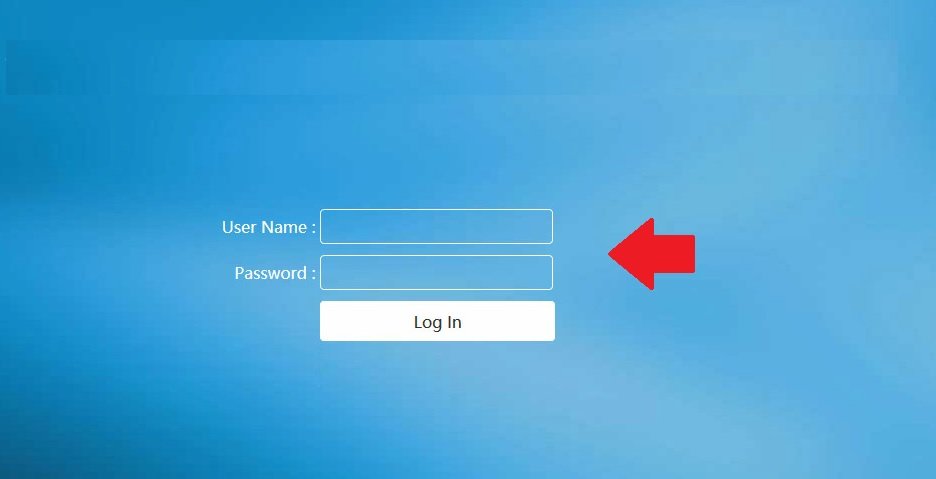
After successful authentication, you will get full access to the router settings control panel where you can find wireless, WAN, LAN, port forwarding, Firewall, and other security settings that secure your home internet.
Change wireless SSID and Password
While setup a new router or using a wireless router for the internet always highly recommended updating the wireless name and password after some time to protect an internet connection.
If your router-modem supports WLAN then you will get the wireless settings option after the login router.
Go to Wireless Settings
SSID network name- Change the default WiFI name with the new name as per your choice.
WiFI security– WPA2-PSK
Key– wifi password (create a new strong wireless password).
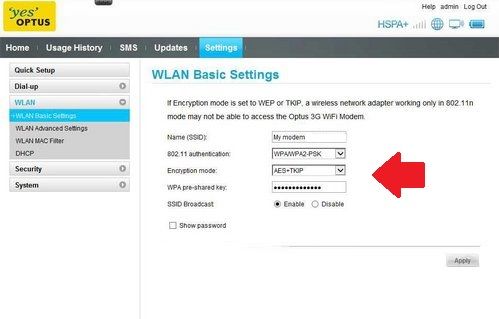
Save settings and you will disconnect from the router if using a wifi connection. Connect again with the new WiFi name and password and follow further settings.
In the next steps, you should update the default login usernames and passwords for 192.168..3.1 IP Address.
Change Login Password
Default login password printed to the router and also easily available on the official website. So before using the router to network always change the login password.
Go to the System or Administration option to change the password.
Old Password– admin or as default password support your router model.
New Password– Create a new Login Password
Confirm password- Confirm the password again to avoid mistakes.
Save settings and log in with a new password.
Troubleshooting Login Issue
If you are facing a login issue or router IP 192.168.3.1 not working or taking a too long time to respond that causes network misconfiguration or any other reasons. Follow the steps to fix the login issue.
192.168.3.1 Not working
If your router sticker printed default IP address 192.168.3.1 but can’t access the login page from the web browser then follow the steps to fix the issue.
- Make default login IP address already not changed
- Check login IP address printed to router sticker and you are accessing to web browser same.
- Make sure your computer/laptop LAN TCP/IPv4 settings in DHCP mode or use 192.168.3.2 as a static model.
- Make sure you are using login IP in the proper format http://192.168.3.1 . http//192.168.3.1 or http//:192.168.3.l is a wrong IP address that redirected to an error.
If you can access the router login page but unable to login due to the wrong username or password issue and you do not remember the login password after change the default then make the router factory reset.
Reset Router to Restore Default settings
Making router to reset erase all configuration saved in the router so if your router configured with internet settings and its working then only reset the router if you have internet settings.
Follow steps to restore the router to default mode
- Find a small reset button near router Ethernet ports.
- Press and hold the reset button for 10-15 seconds using a paper clip or needle.
- The router led light will turn off and turn on again while the router automatically reboots.
- Wait until the router rebooting and restoring to default mode.
- Ping IP address 192.168.3 .1 to confirm router factory default successfully.
Follow the above steps to login into the router and set it up again as per internet settings.
Related Post
- 10.1.10.1 Admin login Username and Password
- login 192.168.10.1 IP Address with admin password
- 192.168.0.254 Login Admin Password
- 192.168.254.254 Admin Login Password