
Skip to content
  • Home
  • How to
  • Network
  • WiFi
  • List Default Router IP
  • How to Find Router IP
  • Software
  • Contact US
myrouter.local

myrouter.local Linksys Login Username and password

by admin

Myrouter.Local  Login Linksys Router

Linksys broadband wireless router or ADSL modems used for internet connection at the home. Linksys is a brand of a Cisco company. Myrouter.local is a login URL used to access Linksys WiFi router web interface for setup for internet connections. Although the router also preconfigured with the default gateway IP address for the first time setup so you can use any of the options either using URL or IP address. If you have a Linksys WRT54G legacy model or the Latest 11Ac Linksys E series WiFi router then you can log in to the router using myrouter.local login URL. You need to connect a wireless router either using wired or wireless to access the Linksys wifi router using default login settings.

  • Best WiFi Router for Long Range

Steps to Access Linksys Router using Myrouter.local

Router with multiple LAN ports can connect to any LAN port or use the default WIFI SSID name printed to router sticker. Follow steps to Linksys Router Setup using myrouters.local.

  • Use a standard LAN cable to connect the router from the computer/Laptop LAN port.
  • Use the WiFI name and password to connect using WIFI connections.
  • Connect Internet cable to WAN port.
  • Change computer LAN TCP/IPv4 and Change LAN settings to DHCP mode.
  • Power ON router with DC adapter comes with the unit.

How to access WiFi Router settings using WiFi and Wired?

Myrouter.local login Default Username and Password

You have two ways to log in to Linksys wifi router using Login IP and Login URL, but you need a login username and password for both the method for the authentication router.

Default Login IP Address– 192.168.l.l   Login URL- myrouter.local

Default Username – admin

Login Default password – admin

  • How to Find Your Router IP Address

Access Router web interface with myrouter local

Open a web browser and access http //myrouter.local  in the URL bar and press the enter key. After a few seconds, you will get myrouter.local/sign in page asking for username and password. You can use http://192.168.1.1 in case myrouter.local not working due to any blocking in the PC.

Use default login credentials as printed to router stickers or use the above settings.

Once you are logged into the router control panel you can configure internet settings as per your internet type, Static IP, PPPoE, or Dynamic.  Ask your internet provider to get internet settings for the first-time setup your broadband wifi router.

  • 192.168.0.1 Default admin username and password

Change Wireless SSID Name and Password

You can change the default WIFI SSID and Password once you accessed the router using myrouter.loca after authenticating login settings.

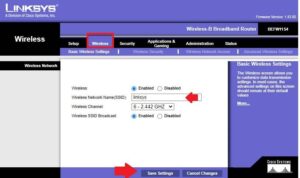
Wireless B Broadband Router BEFW1154

Go to Wireless- Basic Wireless Settings

Wireless- Enabled

Wireless Network Name (SSID) –  Linksys (change SSID as per your choice for your WIFI network)

Wireless Channel- use 1, 6, or 11 (2412, 2437, 2462) these are the non-overlapping frequency.

Wireless SSID Broadcast-  Enabled
myrouter local

Press the Save Settings button and go to Wireless Security settings to change WIFI Key.

  • Login Router with Dlinkrouter.local

Change Wireless Security Key

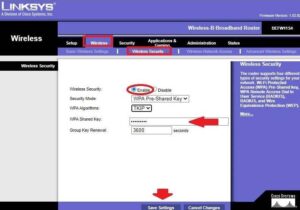
Go to Wireless- wireless Security settings

Wireless Security- Enabled

Security Mode- WPA Pre-Shared Key

WPA Algorithms- TKIP

WPA Shared Key- Linksys-wifi password (create new wifi password)
www.myrouter.local

Press Save Settings to apply changes. All mobile, Laptop, Network printer and other wifi users will be disconnected for WIFI after changing SSID and password. Connect all users again with a new name and Password as updated.

After protecting the WIFI network next step is secure myroutr.local login password to prevent unauthorized access of the router.

  • How to Reuse old WiFi Router with Different Modes

Change Login Password for Linksys WiFI Router

It is always recommended to update the login password during first-time login and setup router to protect router settings.

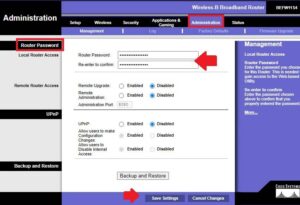
Go to Administration – Management

Router Password – Create a new login password

Re-enter to confirm– type new password again to confirm.
myrouter.loca

Remote Upgrade – Enabled   Disabled

If you want to upgrade your router remotely from the internet then Enable this option.

Remote Administration– If you want to enable router access remotely using the internet. Just using a port to enable router remote access.

Backup and Restore–  After all configuration back the configuration file to keep backup with you for future restore purposes in case you required a router reset due to any reason.

Save settings and start enjoying the internet using wifi as well as wired connections.

  • The Best WiFi Range Extender Device to boost Signal

Troubleshooting of Login issue with myrouter.local

If you are unbaled to access my router.local URL or may taking to a long time to respond that seems to some network misconfiguration and other reasons.

  • 10.1.10.1 Admin login Username and Password

Can’t Access myrouter.local from the browser!

If you are getting an error while accessing Linksys myrouter local URL from the web browser and redirect to the error site cant be reached or the URL not working then follow the steps to fix the error.

  • Make sure your computer is connected to the router LAN port, not the WAN port.
  • Check if the Windows firewall is disabled in the control panel and Services.
  • Make sure computer LAN settings are in DHCP mode.
  • Check you are using the correct login URL- http://myroter.local instead of using the wrong URL “http//myrouter.local”

If still facing Login Issue with Linksys wireless router then you need to factory reset the router.

  • Netgear Range Extender Factory Default

How to Factory Reset Linksys WiFi router?

Step to fix the login error of Myrouter.local while accessing from a web browser.

  • Locate a small reset button in the router beside LAN ports.
  • Use a needle to press and hold the reset button for 10-15 seconds.
  • The router will reboot starts and all LED lights will turn off and again turn off.
  • This process takes 3-4 Minutes so keep calm and wait for the process to end up.


Related Post

  • Fix WiFi Extender keeps Losing internet
  • How to Configure WiFi Blast Range Extender
  • Block internet access for LAN and WiFi User in DLink
  • How to access Wi-Fi repeater if forget password?


Categories Linksys Tags http //linksyssmartwifi.com setup, http //myrouter.local registration, linksys cloud account login, linksys login, linksys router login, linksys smart wifi login, myrouter login, Myrouter.local - Linksys Router Setup, Myrouter.local 192.168.1.1 Setup, MYROUTER.LOCAL LOGIN ISSUES, netgear router login, www.myrouter.local/signin
192.168.178.1 Default Admin login Password
How to Reset Xfinity Router Or Modem

Recent Posts

  • 192.168.11.1 Login Buffalo WiFi to Setup As Range Extender mode
  • 192.168.4.1 Admin Login Router
  • Best 8 port Gigabit Switch for Business and Home
  • How to Fix Spectrum Router Red Light Error ?
  • Why My ATT broadband blinking red ?

Categories

  • 10.0.0.1 (1)
  • 10.0.0.1 (1)
  • 10.1.1.1 (1)
  • 10.1.10.1 (1)
  • 10.10.10.1 (1)
  • 10.10.10.10 (1)
  • 1200Mbps (1)
  • 192.168.0.1 (1)
  • 192.168.0.250 (1)
  • 192.168.0.254 (1)
  • 192.168.0.50 (1)
  • 192.168.1.0 (1)
  • 192.168.1.1 (1)
  • 192.168.1.2 (1)
  • 192.168.1.254 (1)
  • 192.168.1.4 (1)
  • 192.168.10.1 (2)
  • 192.168.10.253 (1)
  • 192.168.10.254 (1)
  • 192.168.100.100 (1)
  • 192.168.11.1 (1)
  • 192.168.15.1 (1)
  • 192.168.16.1 (1)
  • 192.168.188.1 (1)
  • 192.168.188.253 (1)
  • 192.168.2.1 (1)
  • 192.168.254.254 (1)
  • 192.168.3.1 (1)
  • 192.168.4.1 (1)
  • 192.168.42.1 (1)
  • 192.168.8.1 (1)
  • 2Wire AT&T (1)
  • 4G Hotspot Router (1)
  • AC1200 Range Extender (1)
  • AC1200 Range Extender (1)
  • AC1200 Range Extender Setup (1)
  • AC600 Outdoor WiFI Extender (1)
  • Aigital Range Extender (1)
  • Airtel (1)
  • Airtel Xstream (2)
  • Amped wifi booster (1)
  • Amped Wireless (1)
  • Arlo (1)
  • Arlo Base Station (1)
  • Arris (2)
  • Arris TG1682G cable Modem (1)
  • Asus (3)
  • Asus Range Extender (1)
  • AT&T (1)
  • AT&T Compatible Modems (1)
  • Aztech (1)
  • Aztech (1)
  • BelAir 20E (1)
  • BelAir Networks (1)
  • Belkin (2)
  • Brands (2)
  • BSNL (1)
  • BT Extender (1)
  • Buffalo (1)
  • C6300 Cable Modem (1)
  • Cable Modem (1)
  • Cable Modem (1)
  • Cable Modem (1)
  • CCTV (1)
  • CenturyLink Router Login (1)
  • Cisco (1)
  • Cisco Router Login (1)
  • Comcast Xfinity (1)
  • Comfast (1)
  • CradlePoint (1)
  • D-Link (4)
  • DG-5314T (1)
  • DG-5524T (1)
  • DigiCom (1)
  • DSL Modem and Router (1)
  • Ethernet Switch (1)
  • Fiber (1)
  • FTTH ONT/ONU (1)
  • G1208 WiFi Extender (1)
  • Galaway Range Extender (1)
  • How to (7)
  • Huawei (1)
  • iBall (2)
  • IP Address (4)
  • LB-Link (1)
  • Linksys (2)
  • List Default Router IP (1)
  • Lite Beam (1)
  • Mac (1)
  • Medialink (1)
  • Meraki (1)
  • Mercusys (1)
  • MI (1)
  • Moca Adapters (1)
  • Modem with Phone Jack (1)
  • Motorola (1)
  • motorola router login (1)
  • MR70 Wave2 (1)
  • myrepeater (1)
  • Netgear (3)
  • Network (3)
  • Nokia (1)
  • Nokia G2425G-A Fiber ONT (2)
  • ONT (1)
  • OpenWRT (1)
  • Opticover Range Extender (1)
  • Quantum Gateway Router (1)
  • Range Extender (1)
  • Range Extender (1)
  • Repeater/ Range Extender (21)
  • reset spectrum router (1)
  • Review (2)
  • Ring Chime Pro (1)
  • Rockspace WiFI Extender (1)
  • Roku (1)
  • Roku Stick (1)
  • Router Login (1)
  • Router Login (1)
  • Sercomm (1)
  • Setek (1)
  • Spectrum (1)
  • spectrum modem lights (1)
  • SuddenLink (1)
  • Synology (1)
  • Synology RT2600ac (1)
  • TalkTalk router (1)
  • Tenda (3)
  • TP-Link (8)
  • tplinkwifi-net (1)
  • TRENDnet (1)
  • Troubleshooting (1)
  • Ubiquiti (1)
  • Uncategorized (2)
  • Uniway (1)
  • Urant WiFi Repeter Setup (1)
  • VDSL/ADSL Modem (1)
  • Verizon (1)
  • Verizon WiFi Extender (1)
  • Victony (1)
  • VPN Routers (1)
  • WA1200 Range Extender (1)
  • Wavlink (3)
  • Wavlink AC1200 (1)
  • Wi-Fi Disconnection Problem (1)
  • WiFi (11)
  • WiFi Range Extender setup (1)
  • WiFI Repeater Setup (1)
  • WiFi Router (1)
  • WiFiBlast (1)
  • Windows (2)
  • Windstream (1)
  • Zyxel (1)

Tags

192.168.1.1 show password 192.168.1.101 login 192.168.10.1 wifi repeater setup 192.168.l.0.1 login asus repeater setup rt-n12 best wifi extender best wifi extender 2019 best wifi extender cnet best wifi extender for gaming best wifi repeater india comfast 1200mbps dual band repeater setup comfast outdoor wifi extender comfast wifi extender setup uk d'link extender admin password dlink login how to access asus router in repeater mode how to connect to internet using ethernet cable windows 10 how to create lan in windows 10 for gaming how to reset wifi repeater how to use wifi extender http //192.168.o.1.100 login huawei router login username and password long range wifi extender netgear extender default password netgear router login netgear wifi extender netgear wifi extender n300 setup nokia g2425g-a manual nokia g2425g-a router manual router login sagemcom router red light tp-link archer c7 repeater mode tp-link login tp link extender setup without wps tp link range extender tl-wa860re setup wavlink ac1200 outdoor wavlink manual wavlink wifi extender wavlink wifi range extender setup wifi.wavlink.com login wifi booster walmart wifi extender wifi repeater amazon wifi repeater setup zyxel 192.168 login
Follow me on Blogarama

Archives

Recent Posts

  • 192.168.11.1 Login Buffalo WiFi to Setup As Range Extender mode
  • 192.168.4.1 Admin Login Router
  • Best 8 port Gigabit Switch for Business and Home
  • How to Fix Spectrum Router Red Light Error ?
  • Why My ATT broadband blinking red ?
Content Protection by DMCA.com
  • Contact US
  • Privacy Policy
  • Terms and Conditions
  • Disclaimer
© 2026 • Built with GeneratePress