
Skip to content
  • Home
  • How to
  • Network
  • WiFi
  • List Default Router IP
  • How to Find Router IP
  • Software
  • Contact US
iball baton admin login

192.168.1.1 login Iball Baton Wireless N Router

by admin

iBall Baton Login with Admin Password-192.168.1.1

IBall baton 150 Mbps and Iball Baton N300 popular home wifi router used by the Internet service provider at the client end. I ball Wireless router support multi wireless modes such as AP router, Access point, repeater, and client mode. You required iBall baton router login to change router wireless mode and other configuration purposes. If you looking iBall router login guide that helps you to access router settings from web browsers then you are in the right place now. If you have iBall Dual Band WIFI router or iball baton 150m wireless-n adsl2+ or Any other model you can use this user manual to login to the iBall router web interface.

However, you should change iball baton wifi password regularly to protect your wifi network so you need to access wireless settings using iball IP Address. You need to connect I ball baton router either wifi or wired connection to open router login IP to the web browser.

  •  iBall Baton 300M Repeater Mode configuration

Steps to Login into iBall Baton Router

The first step to login I Ball settings is the connection with the computer using wired or wireless connectivity.

Use RJ 45 LAN cable to connect from iBall LAN port to PC/Desktop LAN Port.

Or connect using WIFI network from Laptop or Mobile device.

Power on Router using DC adapter comes with the device.

Internet cable should be connected to the WAN port in Router and Telephone line connect to DSL port for ADSL Router.

PC/Laptop LAN IP settings should be in DHCP mode.

Default iBall Login Credential

Default login settings for iBall baton also printed to router sticker with Mac address and serial number information. However, find iBall login details below.

Default iBall baton login IP address – 192.168.1.1

Iball router login username and password– admin/admin

  • 192.168.0.1 Default admin username and password

Login iBall Web Interface

Open web browser and access login IP http://192.168.l.l to the URL bar and press enter key.

After a few seconds, iBall router login page loads asking for a username and password to authenticate.

Use username and password as printed to router sticker and if you change iBall password use the same to login.

If you are looking to setup iBall router for internet configuration then you need to access network settings and go to WAN settings and provide internet settings PPPoE or Static IP address as per your internet type.

If your router already configured then you should follow the steps to change WiFi Settings.

  •  Best WiFi Router for Long Range

Change iBall WiFi SSID Network Name

Always change iBall Default WIFi name and password to ensure your internet protection from unauthorized access.

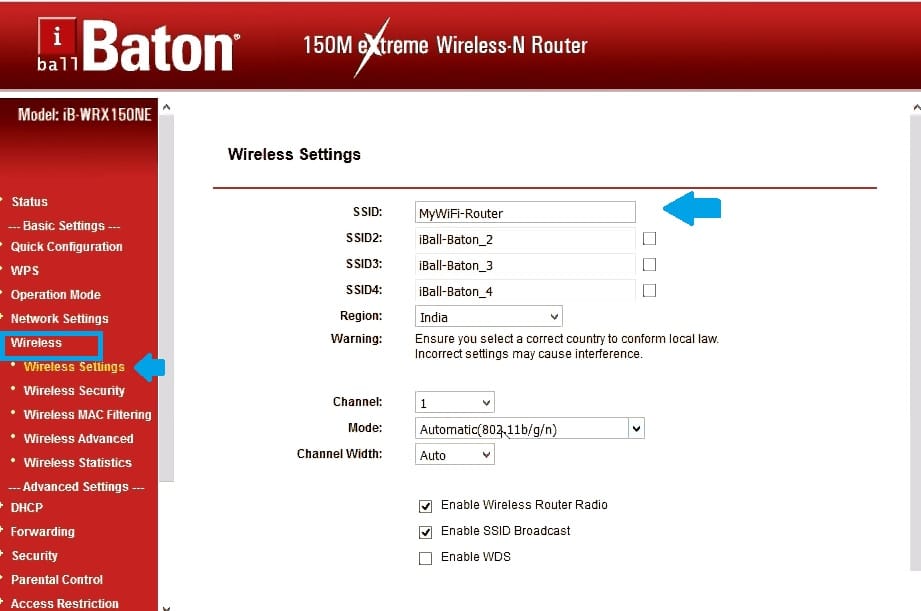
Go to Wireless – Wireless Settings

SSID: change iBall default wifi name with the new WiFi SSID network name.

SSID2:iBall-Baton_2 (if you want to create multiple WiFi names inside a single router enable SSID2, SSID3.

Region– Choose your country.

Channel– Auto Or us 1,6,11 to avoid frequency overlapping issues that makes wifi slow or disconnection issues.
iball baton router login


Press the Save settings button from the bottom and go to the wireless security option to change iball baton wifi password change.

  • How to turn wired IP Camera into Wireless camera

Change Default WiFi Password or Setup New

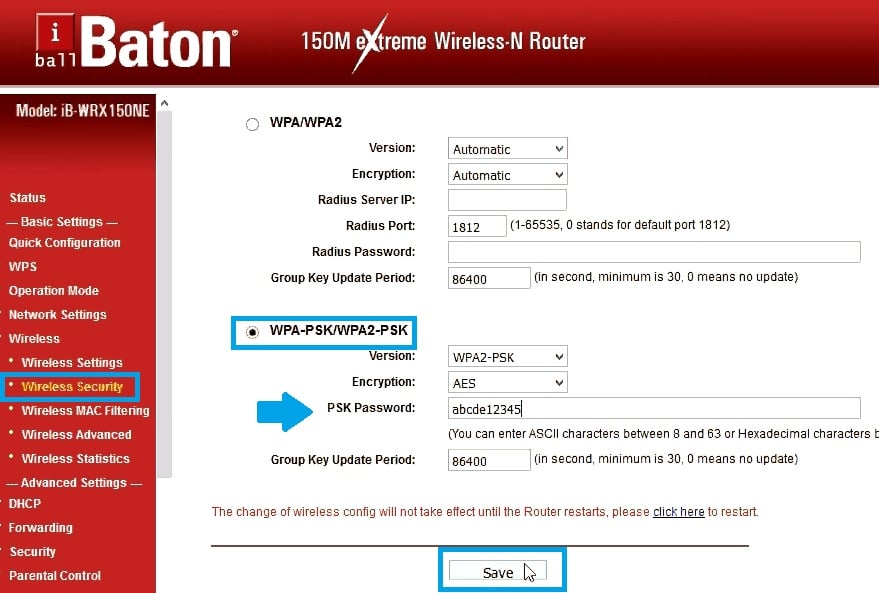
Go to Wireless- Wireless Security option

Choose security type- WPA-PSK/WPA2-PSK

Version – WPA2-PSK

Encryption- AES

PSK Password: create a password for your iBall WiFi.

Press the Save button and wait until the router reboots.
192.168.o.1.1 iball baton login

If you have enabled multiple SSID names in your iball then select SSID2 and SSID3 to set the password.

The next important step is to change the login password to protect router access using default login settings.

  • Best Cable Modem With Phone Jack | Buying Guide

Change iBall Baton Login Password

This print shot is iBall Baton 150M extreme Wireless-N router to create this user manual but you can follow these steps to change i-Ball any model password.

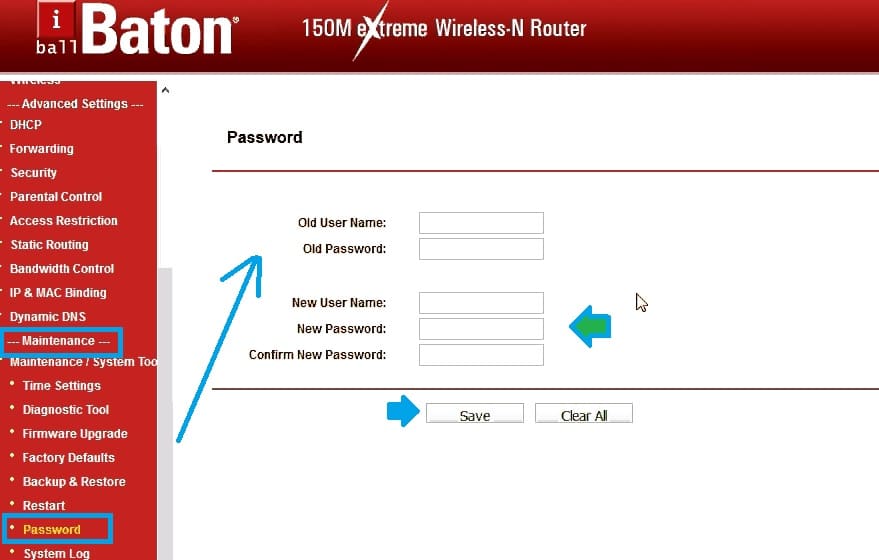
Go to Maintenance- Password

Old User Name: admin

Old password: admin

New user name: create a new username

New Password: set a new login password using alfa numeric to pick a strong password.

Confirm New password: Type a new password again to confirm.

Press the Save button to apply changes and log in to the router with a new username and password again.
iball router default password

  • 192.168.2.1 & 192.168.2.l Admin Login Router

iBall Router Troubleshooting

If you are getting an error while login into iBall wifi router then follows troubleshooting steps to fix the login issue.

Iball Router Login IP Address Not Working

Default login IP address 192.168 ll taking to a long time to load iBall baton login page can be due to network configuration error or login IP address not belong to i Ball router LAN settings.

Follow steps to fix an issue with 192.168 l l iBall baton 300m login or any other iBall router models.

  • Make sure the default login IP address you are accessing is also printed to default settings in the router sticker.
  • Confirm the default login IP address for the lBall router already not changed with different series.
  • Computer/Laptop LAN IP Settings should be in DHCP mode to get an IP address from the Iball baton.
  • Make sure you are typing login IP correct form http://192.168.1.1

If you are still facing a login issue with iBall router or you may forget the login password after changed then make the router factory reset.

  • Block internet access for LAN and WiFi User in DLink

Factory Reset iBall Baton Router

IBall modem and wireless router having a small reset button to factory reset wifi router when forgetting login password or router not working.

Note: A factory reset will erase all the configuration saved in the router so make sure you have router settings detail to configure again after making the router default.

Steps to Reset router in default mode

  • Locate a small reset button beside Ethernet ports.
  • Press and hold the reset button for 10-15 seconds using any needle or pin.
  • Router led will blink and reboot the router and try again 192.168.o.1.1 iBall baton login using the above steps.


Related Post

  • 192.168.10.1 Login and Setup Wavlink WiFi Repeater
  • How to Configure WiFi Blast Range Extender
  • TP-Link Archer C20 Range Extender Mode [No Operation Mode]
  • Create a Local Network using Old Router
Categories iBall Tags 192.168 1.106 password, iball baton 1200m login password, iball baton forgot password, iball baton password configuration for securing wifi, iball baton reset, iball baton wifi password hack, iball router login page not working, iball router setup
How to Block Website and Apps in Asus RT-AX88u Router
Tenda AC10 AC1200 Repeater Mode

Recent Posts

  • 192.168.11.1 Login Buffalo WiFi to Setup As Range Extender mode
  • 192.168.4.1 Admin Login Router
  • Best 8 port Gigabit Switch for Business and Home
  • How to Fix Spectrum Router Red Light Error ?
  • Why My ATT broadband blinking red ?

Categories

  • 10.0.0.1 (1)
  • 10.0.0.1 (1)
  • 10.1.1.1 (1)
  • 10.1.10.1 (1)
  • 10.10.10.1 (1)
  • 10.10.10.10 (1)
  • 1200Mbps (1)
  • 192.168.0.1 (1)
  • 192.168.0.250 (1)
  • 192.168.0.254 (1)
  • 192.168.0.50 (1)
  • 192.168.1.0 (1)
  • 192.168.1.1 (1)
  • 192.168.1.2 (1)
  • 192.168.1.254 (1)
  • 192.168.1.4 (1)
  • 192.168.10.1 (2)
  • 192.168.10.253 (1)
  • 192.168.10.254 (1)
  • 192.168.100.100 (1)
  • 192.168.11.1 (1)
  • 192.168.15.1 (1)
  • 192.168.16.1 (1)
  • 192.168.188.1 (1)
  • 192.168.188.253 (1)
  • 192.168.2.1 (1)
  • 192.168.254.254 (1)
  • 192.168.3.1 (1)
  • 192.168.4.1 (1)
  • 192.168.42.1 (1)
  • 192.168.8.1 (1)
  • 2Wire AT&T (1)
  • 4G Hotspot Router (1)
  • AC1200 Range Extender (1)
  • AC1200 Range Extender (1)
  • AC1200 Range Extender Setup (1)
  • AC600 Outdoor WiFI Extender (1)
  • Aigital Range Extender (1)
  • Airtel (1)
  • Airtel Xstream (2)
  • Amped wifi booster (1)
  • Amped Wireless (1)
  • Arlo (1)
  • Arlo Base Station (1)
  • Arris (2)
  • Arris TG1682G cable Modem (1)
  • Asus (3)
  • Asus Range Extender (1)
  • AT&T (1)
  • AT&T Compatible Modems (1)
  • Aztech (1)
  • Aztech (1)
  • BelAir 20E (1)
  • BelAir Networks (1)
  • Belkin (2)
  • Brands (2)
  • BSNL (1)
  • BT Extender (1)
  • Buffalo (1)
  • C6300 Cable Modem (1)
  • Cable Modem (1)
  • Cable Modem (1)
  • Cable Modem (1)
  • CCTV (1)
  • CenturyLink Router Login (1)
  • Cisco (1)
  • Cisco Router Login (1)
  • Comcast Xfinity (1)
  • Comfast (1)
  • CradlePoint (1)
  • D-Link (4)
  • DG-5314T (1)
  • DG-5524T (1)
  • DigiCom (1)
  • DSL Modem and Router (1)
  • Ethernet Switch (1)
  • Fiber (1)
  • FTTH ONT/ONU (1)
  • G1208 WiFi Extender (1)
  • Galaway Range Extender (1)
  • How to (7)
  • Huawei (1)
  • iBall (2)
  • IP Address (4)
  • LB-Link (1)
  • Linksys (2)
  • List Default Router IP (1)
  • Lite Beam (1)
  • Mac (1)
  • Medialink (1)
  • Meraki (1)
  • Mercusys (1)
  • MI (1)
  • Moca Adapters (1)
  • Modem with Phone Jack (1)
  • Motorola (1)
  • motorola router login (1)
  • MR70 Wave2 (1)
  • myrepeater (1)
  • Netgear (3)
  • Network (3)
  • Nokia (1)
  • Nokia G2425G-A Fiber ONT (2)
  • ONT (1)
  • OpenWRT (1)
  • Opticover Range Extender (1)
  • Quantum Gateway Router (1)
  • Range Extender (1)
  • Range Extender (1)
  • Repeater/ Range Extender (21)
  • reset spectrum router (1)
  • Review (2)
  • Ring Chime Pro (1)
  • Rockspace WiFI Extender (1)
  • Roku (1)
  • Roku Stick (1)
  • Router Login (1)
  • Router Login (1)
  • Sercomm (1)
  • Setek (1)
  • Spectrum (1)
  • spectrum modem lights (1)
  • SuddenLink (1)
  • Synology (1)
  • Synology RT2600ac (1)
  • TalkTalk router (1)
  • Tenda (3)
  • TP-Link (8)
  • tplinkwifi-net (1)
  • TRENDnet (1)
  • Troubleshooting (1)
  • Ubiquiti (1)
  • Uncategorized (2)
  • Uniway (1)
  • Urant WiFi Repeter Setup (1)
  • VDSL/ADSL Modem (1)
  • Verizon (1)
  • Verizon WiFi Extender (1)
  • Victony (1)
  • VPN Routers (1)
  • WA1200 Range Extender (1)
  • Wavlink (3)
  • Wavlink AC1200 (1)
  • Wi-Fi Disconnection Problem (1)
  • WiFi (11)
  • WiFi Range Extender setup (1)
  • WiFI Repeater Setup (1)
  • WiFi Router (1)
  • WiFiBlast (1)
  • Windows (2)
  • Windstream (1)
  • Zyxel (1)

Tags

192.168.1.1 show password 192.168.1.101 login 192.168.10.1 wifi repeater setup 192.168.l.0.1 login asus repeater setup rt-n12 best wifi extender best wifi extender 2019 best wifi extender cnet best wifi extender for gaming best wifi repeater india comfast 1200mbps dual band repeater setup comfast outdoor wifi extender comfast wifi extender setup uk d'link extender admin password dlink login how to access asus router in repeater mode how to connect to internet using ethernet cable windows 10 how to create lan in windows 10 for gaming how to reset wifi repeater how to use wifi extender http //192.168.o.1.100 login huawei router login username and password long range wifi extender netgear extender default password netgear router login netgear wifi extender netgear wifi extender n300 setup nokia g2425g-a manual nokia g2425g-a router manual router login sagemcom router red light tp-link archer c7 repeater mode tp-link login tp link extender setup without wps tp link range extender tl-wa860re setup wavlink ac1200 outdoor wavlink manual wavlink wifi extender wavlink wifi range extender setup wifi.wavlink.com login wifi booster walmart wifi extender wifi repeater amazon wifi repeater setup zyxel 192.168 login
Follow me on Blogarama

Archives

Recent Posts

  • 192.168.11.1 Login Buffalo WiFi to Setup As Range Extender mode
  • 192.168.4.1 Admin Login Router
  • Best 8 port Gigabit Switch for Business and Home
  • How to Fix Spectrum Router Red Light Error ?
  • Why My ATT broadband blinking red ?
Content Protection by DMCA.com
  • Contact US
  • Privacy Policy
  • Terms and Conditions
  • Disclaimer
© 2026 • Built with GeneratePress